Camset
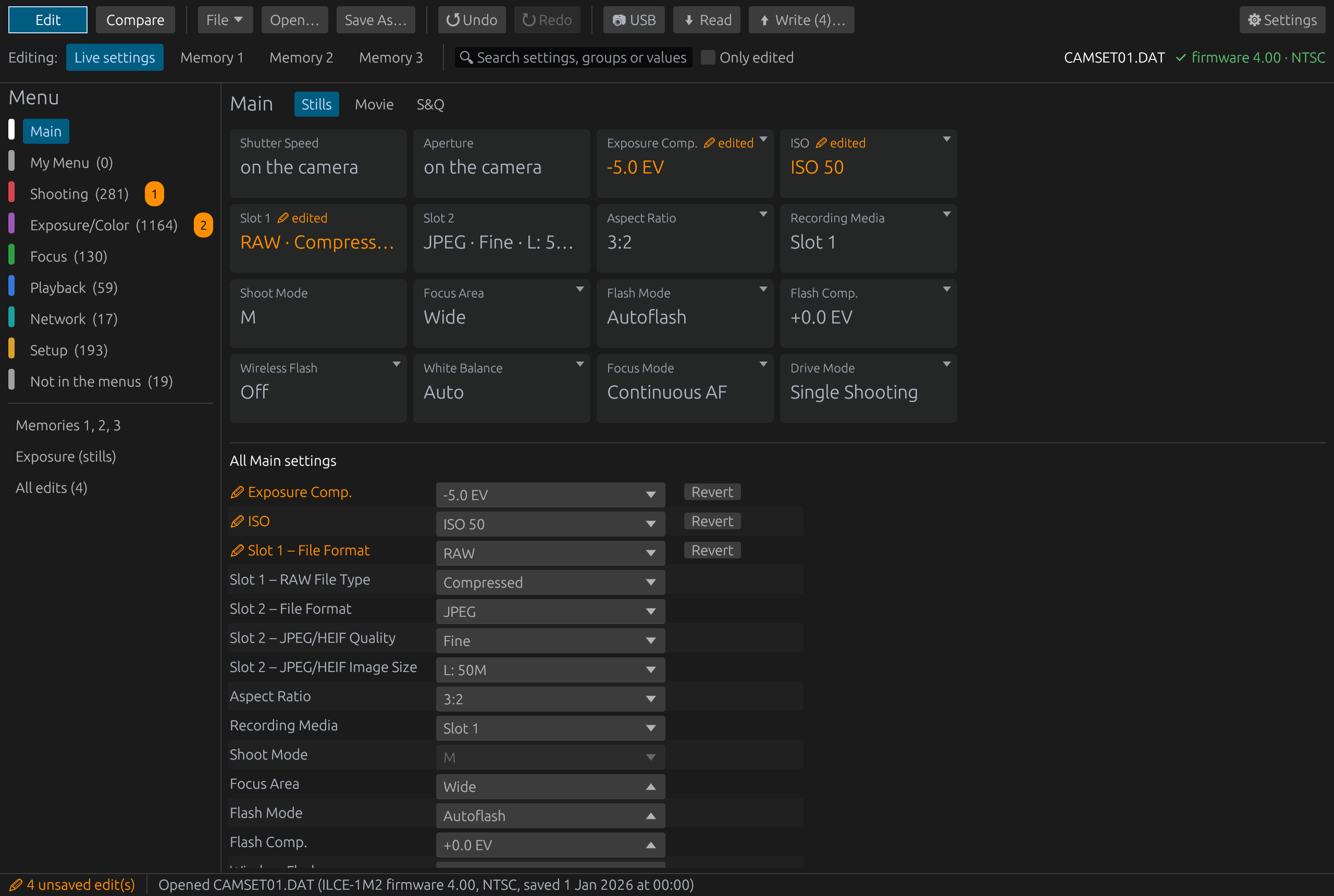
Camset opens the settings file a Sony camera saves to its card, shows every setting in it by name, compares files and the camera's memories, changes a value and saves a file for the camera to load back.
Look inside your settings file now, with nothing to install: the definition viewer opens a
CAMSET*.DAT of any camera Camset knows and shows every setting in it by name, and the file's layout byte by byte.
The file is read in your browser and never leaves your computer.
At your own risk
Writing an edited settings file to a camera is at your own risk. A file edited by hand once put a camera into a restart loop in Movie mode, which ended when Initialize was run on the camera; Initialize also clears the network setup and the memories. The editor and the camera may refuse or change values. Always keep the camera's own backup, a settings file it saved itself, to load back: on the card and on your computer.
This is an independent project, not affiliated with or endorsed by Sony. Sony and the camera names are used only to say what the files are.
Is my camera supported?
| Camera | Firmware | What the editor knows |
|---|---|---|
| ILCE-1M2 (a1 II) | 4.00 | About 2,000 settings by name. Status counts how many the camera has proved. |
Other bodies need a mapping pass first, which works out on the camera what each setting in its file means: map your camera says how, and which cameras the kit works with how to check yours.
Get it
The editor is on the Releases page: a disk image for macOS on Apple silicon, a tarball for Linux and, since 0.2.1, a zip for Windows, with an installer beside it from the release after 0.2.1. The README's Use the editor says how, which Windows download to take, and how to open the macOS app or the Windows program the first time. Since 0.2.1 each release also carries the definition viewer as one file, camset-viewer.html, to open in a browser with no internet.
Code signing policy: the Windows downloads are not signed. SignPath Foundation declined the project's application for free code signing for now, as the project is too new, and the project will apply again later; the code signing policy says what would be signed, and by whom, once an application is accepted.
- Save the settings on the camera: MENU > Setup > Reset/Save Settings > Save/Load Settings > Save. The camera
writes a
CAMSET*.DATfile into the card'sPRIVATE/SONY/CAMSETfolder. Copy it to your computer and keep it: it is the camera's own backup. - Open the file in the editor, then compare it with another file or with the camera's memories, or change a value.
- Save and load it back: Save As… under a new name, copy the new file into the same folder on the card, then on the camera Save/Load Settings > Load, and choose it.
Without a camera, Explore a sample opens a file to look around in. Using the editor has the details and what has not been tried yet.
How a setting is proved
The mapping kit changes each setting on the camera itself, downloads the file the camera then saves and sees which records changed. What it proves goes into the camera's definition with its proof: which values the camera showed and wrote, and when. The proof viewer lays out the camera's own screens beside each value. It exists only where the kit has run, since it shows that camera's own pictures; the one below shows the a1 II's sample file. The definition viewer is the same page without the pictures, for anyone: each value with whether a proof checked it.
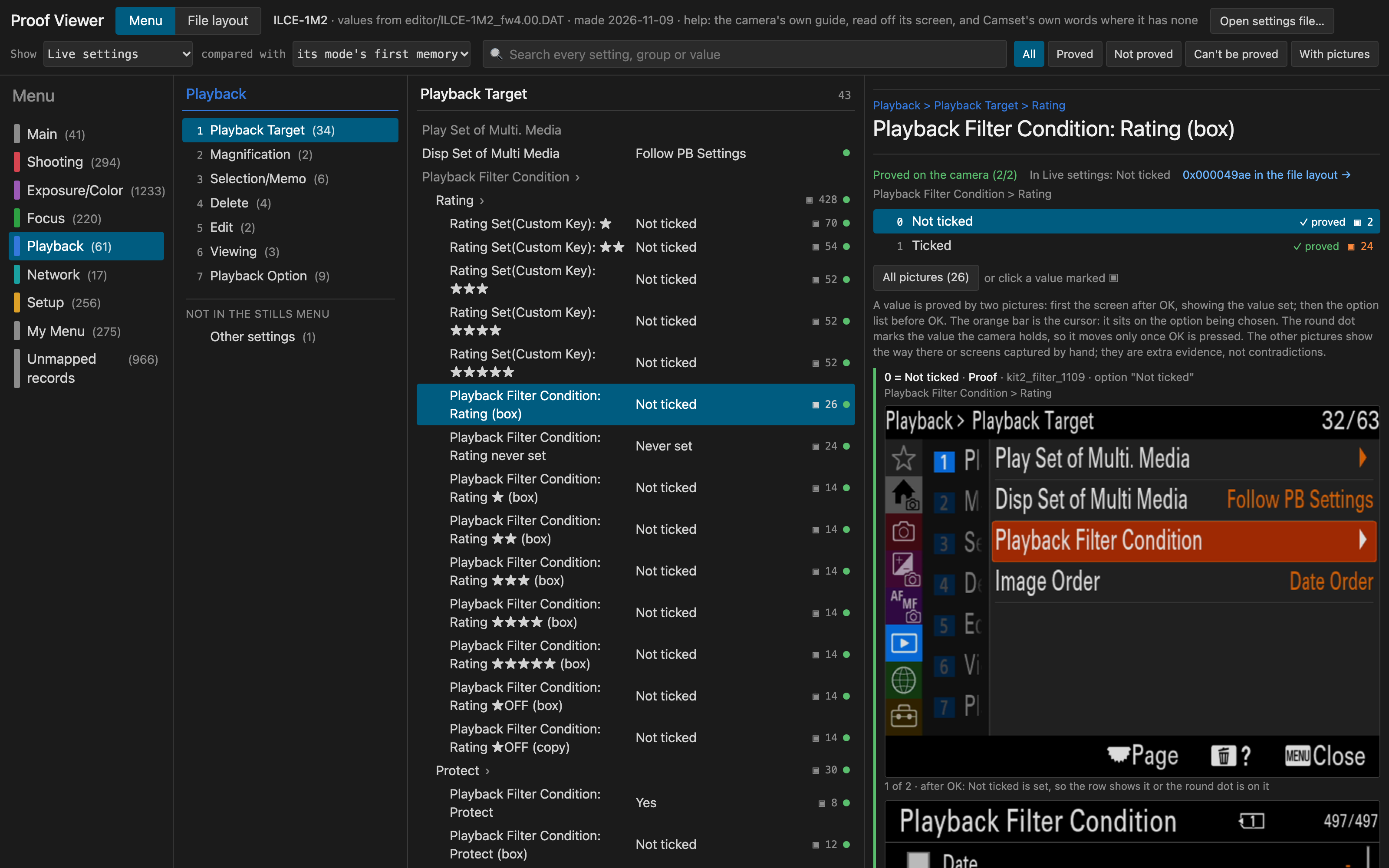
To map your own camera, clone the repository, start an AI agent in it and say "read AGENTS.md and map my camera". The README's Map your camera lists what you need, the playbook is what the agent follows, and the kit's design says why it works as it does.
For developers and contributors
- Tutorials: from nothing to a first proved setting.
- How-to guides: use the editor, map another camera, update your clone, Windows and Linux, make a release.
- Reference: status, the file format (a Kaitai Struct spec, for Kaitai's tools and ImHex), memory map, data files and their schemas, the ILCE-1M2's page (what was measured on it and how it behaves).
- Explanation: the kit's design (how a setting is proved), which cameras the kit works with, where each fact lives.
- Decisions (why things are done as they are).
The code is in the repository, and CONTRIBUTING says how to send a change or a mapped camera back.
Version
0.2.1, released 2026-11-13; 0.1.0 is withdrawn. What changed in each release is in the changelog.